Link Snippet Guide
Links allow you as the name already suggests to reference external resources or websites in your notebook. This can be helpful to provide additional information or to give credit to the original source of a dataset or image.
This guide expects you have a basic understanding of text and or image snippets.
Constructing a Link
To create a link you need two parts, for once the a snippet (text, image, etc.) that will be displayed in the notebook and the actual link that will be opened when the user clicks on the snippet.
Let’s assume we have a simple text snippet that should be displayed in the notebook and a link that should be opened when the user clicks on the snippet.
from snip.snippets import LinkSnip, TextSnip

text = "Hello, reference!"
text_snip = TextSnip(text)
link_snip = LinkSnip(text_snip, "https://example.com")
link_snip.x = 100
link_snip.y = 200
link_snip

If you want to modify the inner snip i.e. the text in this example, you may access it with the .inner property.
link_snip.inner.text = "Hello, updated reference!"
link_snip.inner.font_size = 50
link_snip
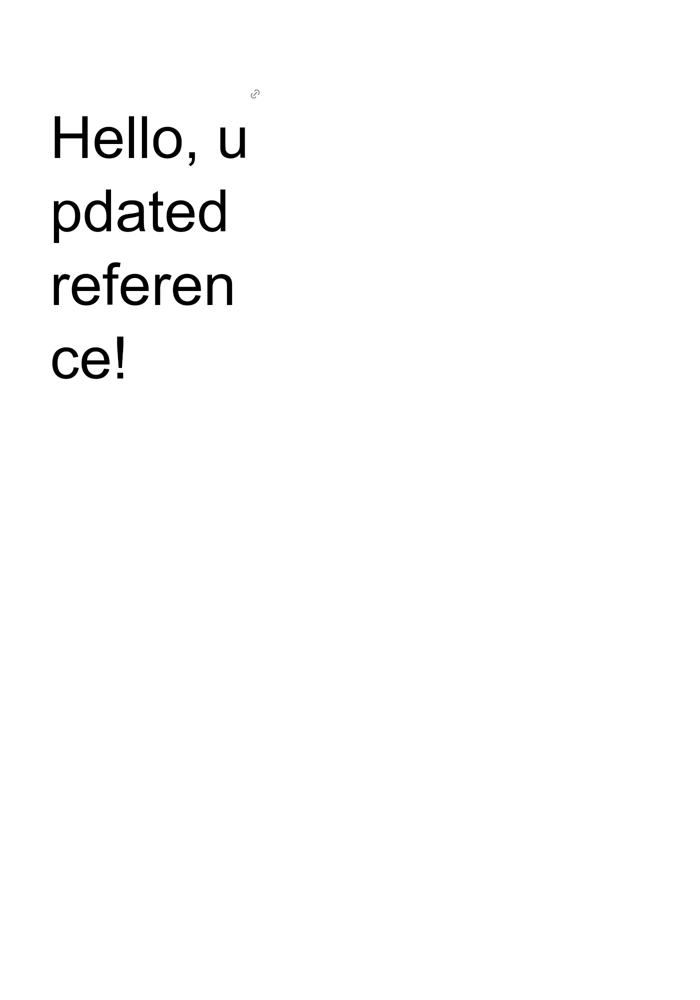
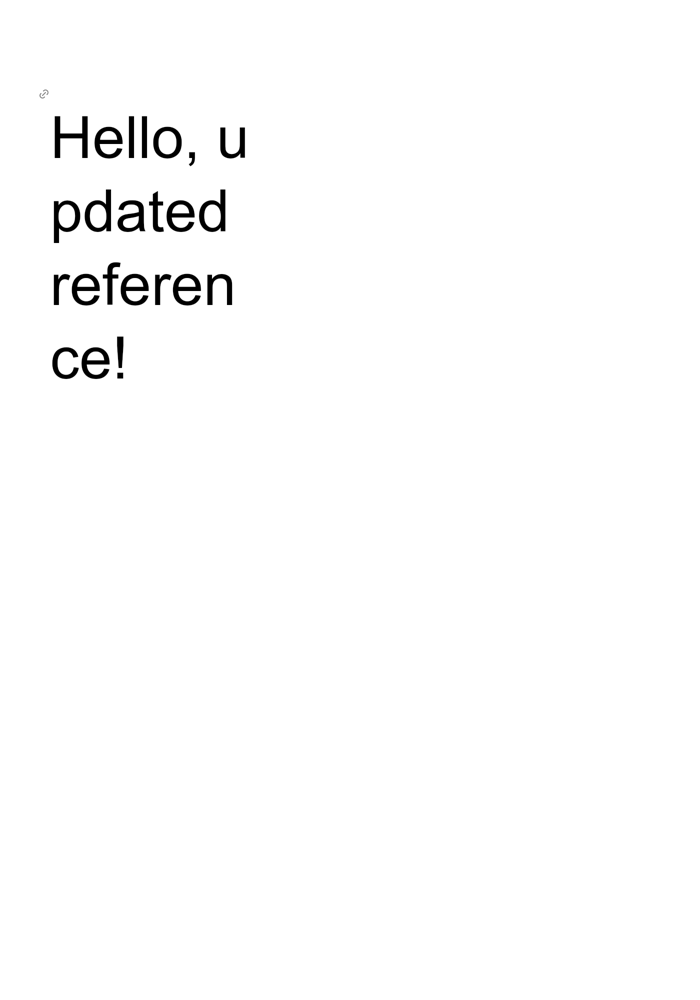
You can also change the styling of the icon, at the moment we only allow you to change the position of the icon. Allowed positions are
    pos_x: float | Literal["right", "left", "center"]
    pos_y: float | Literal["top", "bottom", "center"]
link_snip.icon_style["pos_x"] = "left"
link_snip.icon_style["pos_y"] = "top"
link_snip
To upload the link including the nested snippet you can use the typical upload function.
link_snip.upload(book_id=1)